
How to Place an Order
A step-by-step guide to ordering SMT stencils through the NVZN Labs portal.
Starting a new order
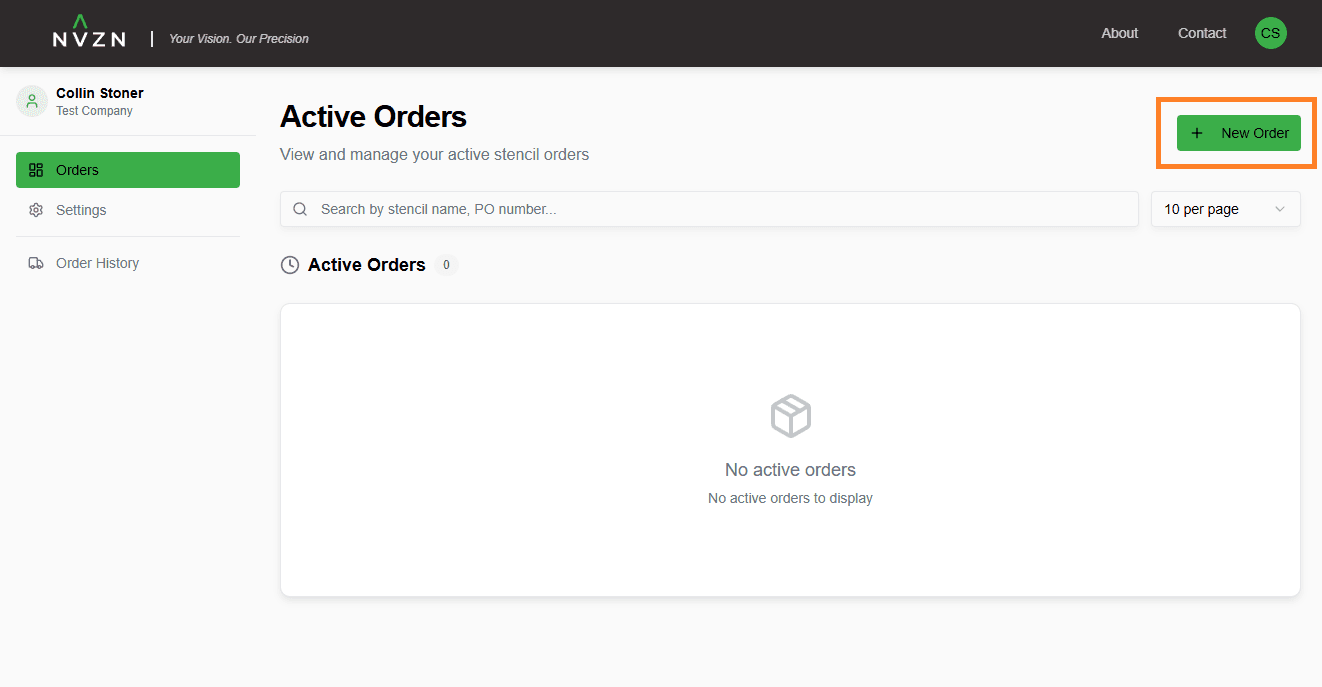
From your dashboard, click the + New Order button in the upper right corner.
Uploading your Gerber files
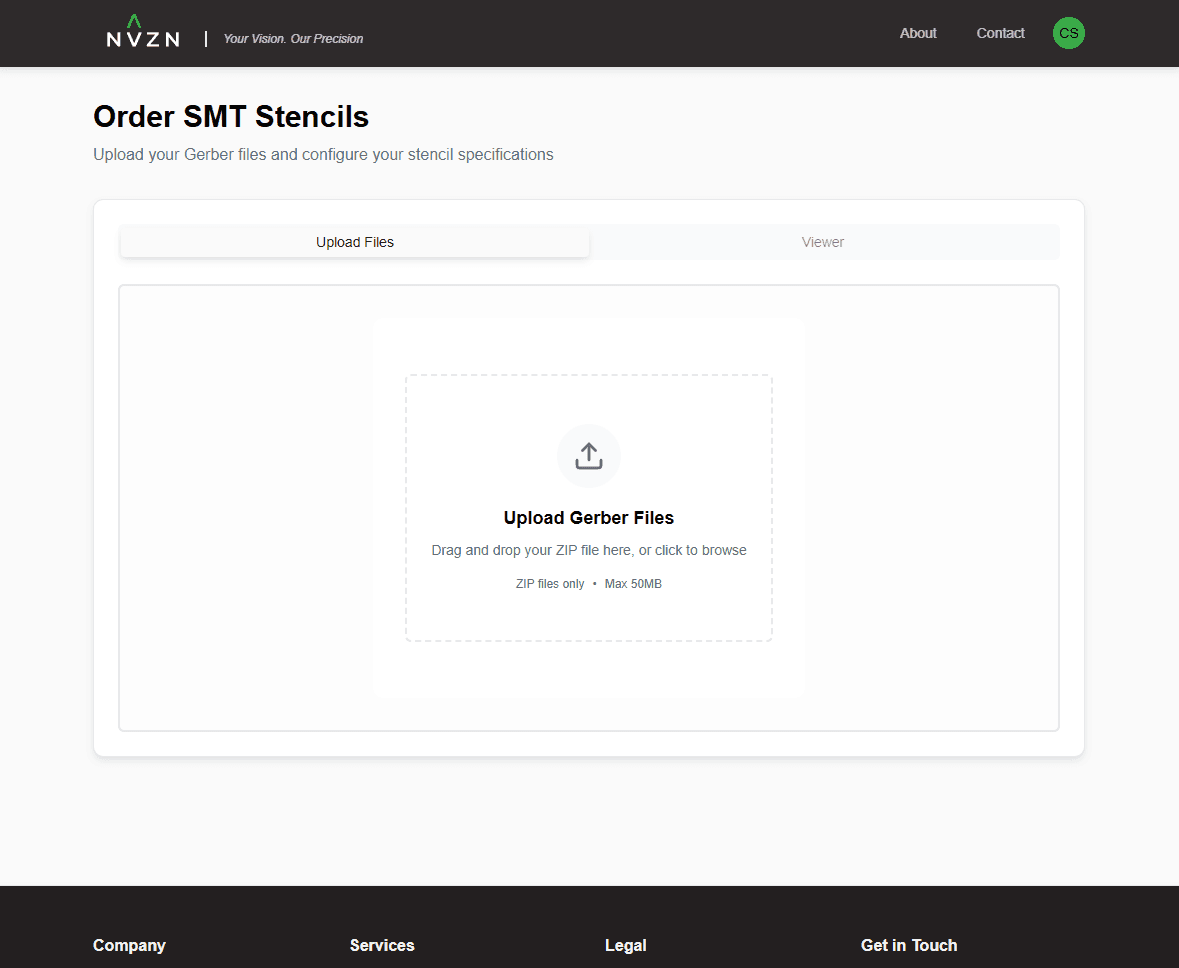
You'll be taken to the upload page. Choose a ZIP file that contains the Gerber files of your board. You can drag and drop files into the drop zone or click to open a file browser.
- Use the Gerber files of your panel, exactly as you manufacture it. We cannot panelize single-up Gerbers into a panel for stencil purposes.
- Only include the Gerbers for the panel. Don't add additional files for the single-up design or multiple boards in the ZIP file.
Configuring your order
After uploading, you'll see a preview of your board in the Gerber viewer. You can toggle between the top and bottom sides using the button in the upper left corner.
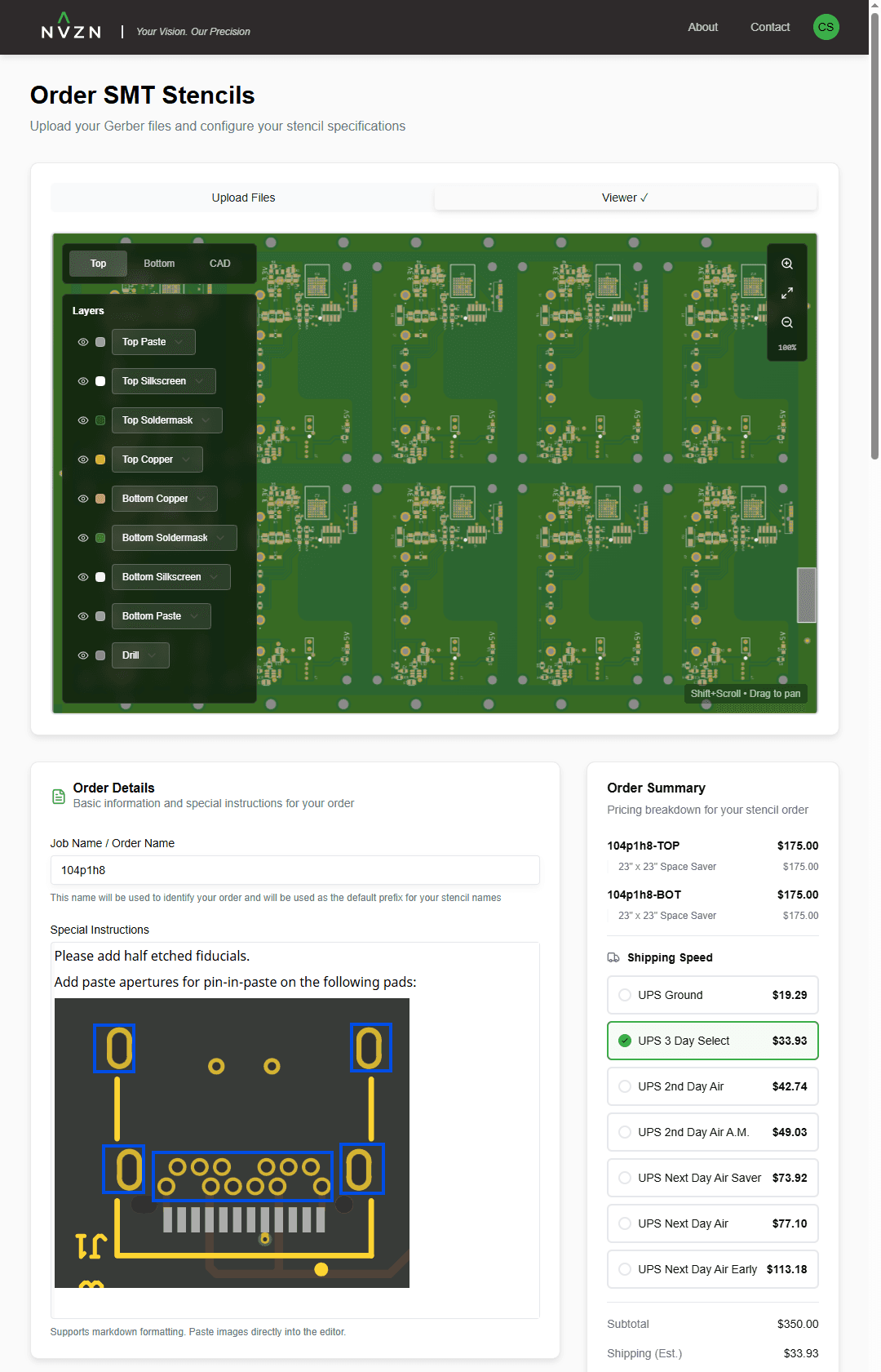
By default, we pick up the top and bottom paste layers to build the stencil files. The ZIP file name is used as the default job name, and stencils are named<job name>-TOP and <job name>-BOT. You can specify a different job name in the Job Name / Order Name field, or set a custom name per stencil in its section (which overrides the job name).
Special instructions
If you need custom adjustments or special features, use the Special Instructions box to communicate requirements to our CAM technicians. You can write or paste both text and images—useful for highlighting specific locations on the board.
Stencil options
Configure options and technologies for each stencil in the stencil sections:
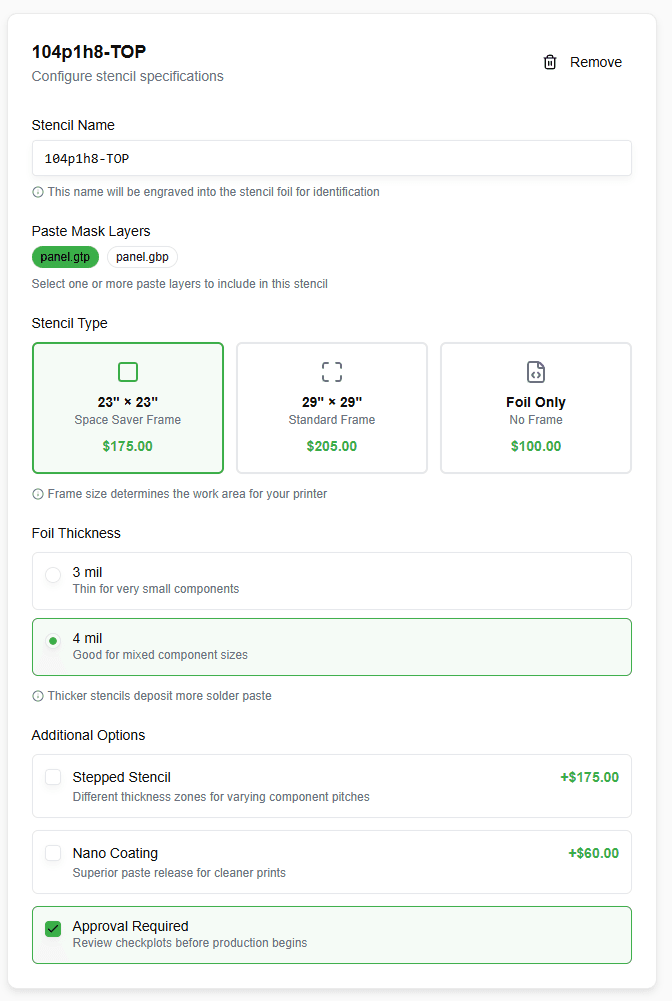
A stencil section for the top and bottom paste layers is automatically created using your account default settings. To edit your defaults, go to your Dashboard Settings and scroll to Stencil Defaults.
- If you don't need a stencil for one side, click Remove to delete it. You can add it back with the + Add Another Stencil button.
- To set a custom name for a stencil, enter it in the Stencil Name field. This name will be engraved into the stencil foil.
Billing and shipping
Enter your billing and shipping address to get estimated pricing. These fields are pre-populated with your defaults to speed up repeat orders. You can update your defaults in Dashboard Settings under the Billing and Shipping sections.
You can ship pre-pay (estimated prices for each shipping option are shown at checkout) or ship on your own UPS account. Select Ship on My Account and provide your UPS account number and billing ZIP code—we won't charge you for shipping and you'll pay your negotiated rates directly to UPS.
Placing the order
Once you've confirmed your instructions, stencil options, and billing/shipping details, click Proceed to Checkout to submit your order. Processing may take a moment—please be patient.
Ready to get started?
Go to Dashboard